Start Here
Linking Your Game
You connect KSP to your account once. It takes a code, one approval, and about twenty seconds. No password is involved, and none is ever asked for.
Before anything is sent
The very first time the add-on loads it shows a consent screen covering the privacy policy and terms. Until you accept it, the add-on transmits nothing at all, not even a version check. That is a hard gate in the code rather than a preference.
Your acceptance is written to PluginData/consent.cfg, separately from the settings file, and the file is re-read when it changes on disk so an edit takes effect without a restart. If the policy is updated later, the server says so and the add-on asks again before sending anything further.
Two places to get a code
The code can come from this website or from Discord, and the two are the same flow with the approval in a different place. Pick whichever you already have open.
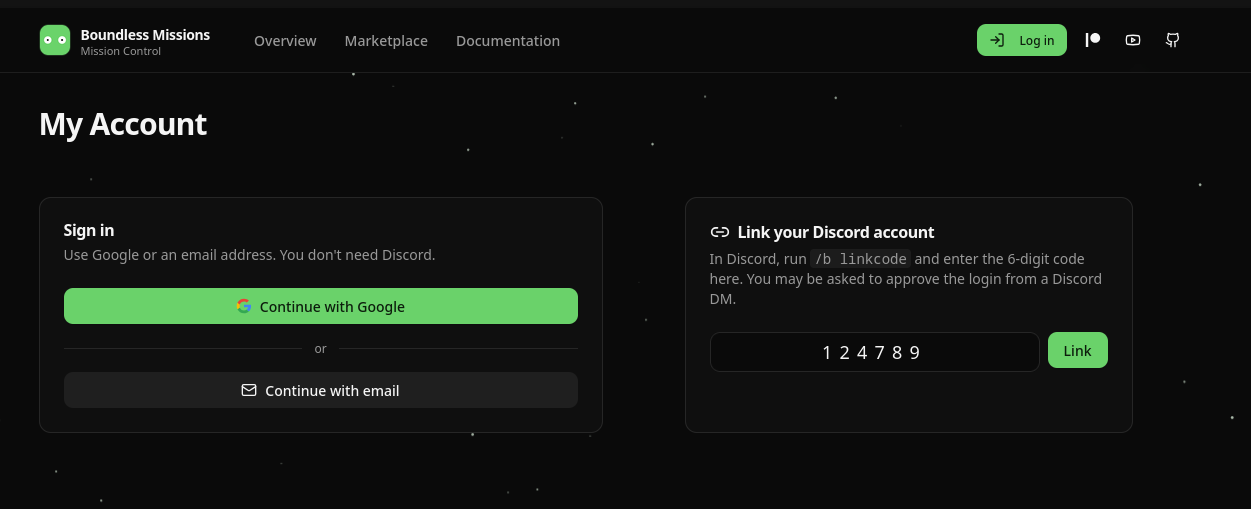
From the website. Sign in at /account with Google or an email address. You do not need Discord for this, and an account made this way is a full one: a wallet, contracts, listings and a username of its own.
From Discord. Run /b linkcode in any server the bot is in. It answers privately with the same kind of 6-digit code.
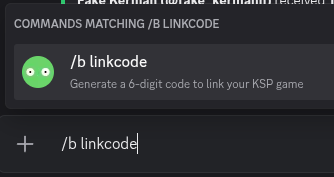
/b on the official server. On a server that has set no command group it sits at the top level as /linkcode.The flow
- 1
Ask for a code
Press Get a link code on the account page, or run the Discord command. Either way you get a 6-digit code stored server side with a three minute lifetime. Asking for a new one invalidates any code you already had.
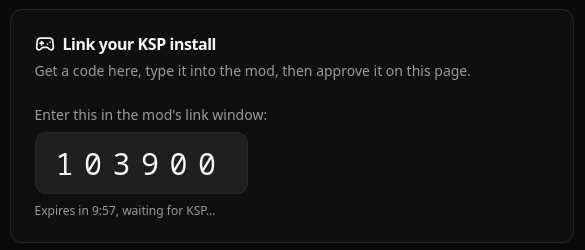
The card holds the code and counts down. It is also polling: the moment a KSP client uses the code, this card turns into the approval below. - 2
Type it into the add-on
Open the link window in game and enter the code. A valid code does not immediately produce a token: it creates a pending approval instead.
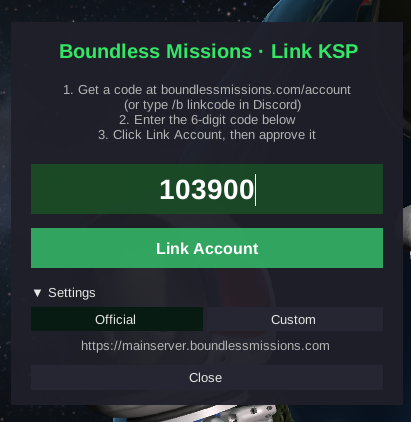
The window carries the same two routes in its own instructions, and a Settings fold for choosing which server to link to. - 3
Approve it
The approval goes back to wherever the code came from. A code taken from this website is approved on this website: the card turns into a prompt naming the IP and device asking to sign in, with Yes and Refuse.
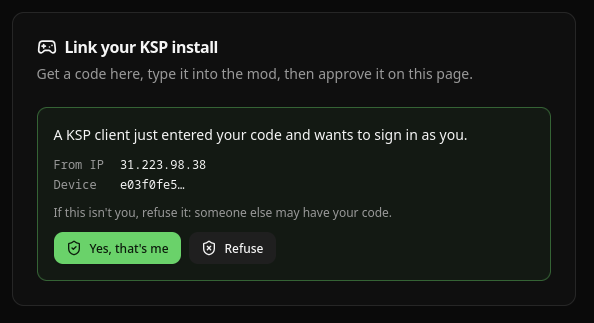
The client's IP and the first characters of its device id are shown, because the point of the step is approving a named thing rather than approving in general. A code from
/b linkcodeis approved in Discord instead: the bot sends you a direct message with a Log in button and a Not me button. The game polls until you answer one of them.Nothing secret travels through either channel. The button only flips the state of a challenge the game is already holding an id for, and a challenge can only be answered by the account it was raised against.
- 4
A session token comes back
On approval the server issues a session token signed with HMAC-SHA256, valid for thirty days, and the add-on writes it to
PluginData/session.token. The 6-digit code is deleted at that point and cannot be reused. - 5
The install is bound to your account
Each KSP install writes a random id once and sends it with every request. The install that completed this flow is trusted automatically. If a different one ever appears on your account, it is blocked outright until you approve it from a Discord message, or report it.
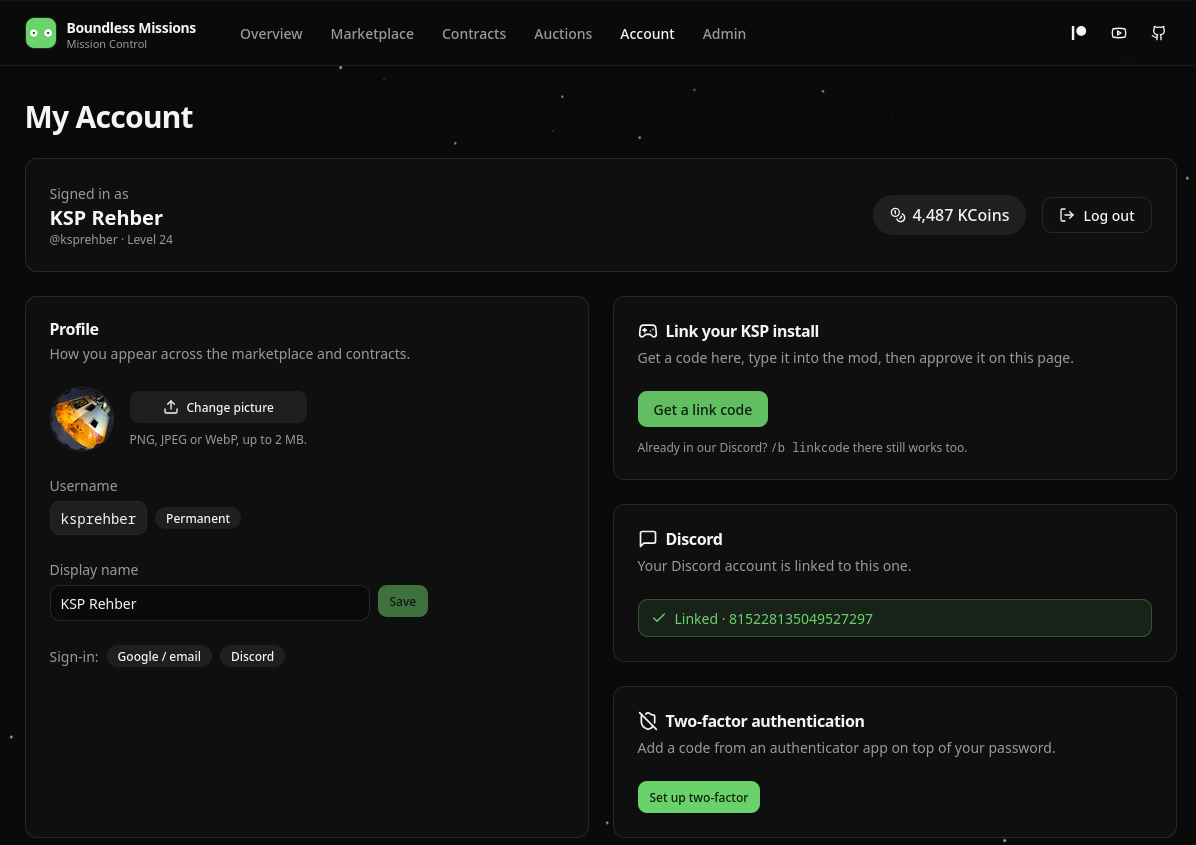
Linked. The account page is where the rest of it lives afterwards: your username and display name, the Discord link, two-factor, and a fresh code whenever you install KSP somewhere else.
Why it is built this way
Three separate things have to be true before a request is accepted, and each one closes a hole the others leave open.
The signed tokenHMAC-SHA256, 30 days | Proves the request came from something the server issued a token to. The signing secret never leaves the server, so a client can present a token but cannot mint one. |
The approvalone tap, 3 minutes | Proves a person holding the account agreed to this specific login. The code is typed into KSP, so the confirmation deliberately lands somewhere else — a code read out on stream or over chat gets nobody anywhere, because they cannot press the button. |
The device idrandom per install | Proves the request came from the install that was approved. A copied session token from a different machine is hard-blocked rather than silently accepted. |
The device id is not your hardware
It is a random identifier generated once and stored beside the add-on. It is not a MAC address and carries no personal data, so it survives a network card change and tells the server nothing about your machine.
What the game client actually holds
Briefly a 6-digit code, and then a signed token. That is the whole list. It never receives an API key, the bot’s Discord token or any database credential, because it has no use for one: every request it makes is authorised by the token alone and every read is scoped to your own account on the server.
6-digit code    stored server side, 3 minute lifetime, single use
     approved on the website, or in a Discord DM
session token   HMAC-SHA256 signed, 30 day lifetime
     stored at
PluginData/session.token        local to this install
PluginData/device.id            random id, bound to your account
Unlinking, and starting over
Deleting PluginData/session.token returns the add-on to its unlinked state, ready for a new code. That only affects this install.
To cut off every install at once, including one you no longer have access to, use the log out everywhere action. It bumps a version number on the server that every existing token is checked against, so all of them stop working immediately. Your balance, XP, contracts and listings are untouched.
Switching between servers
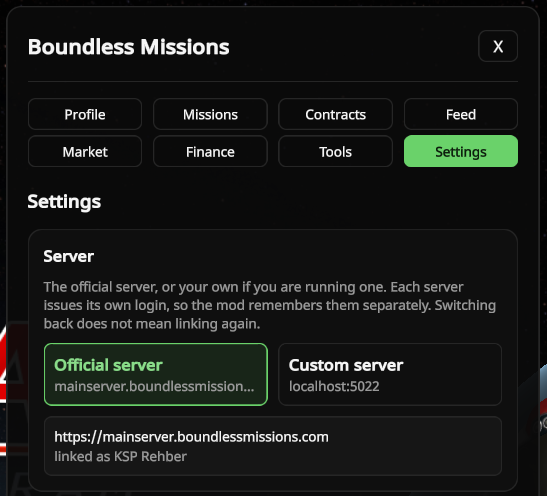
The add-on remembers a token per server address, so moving between the official server and one you run yourself does not mean linking again each time. Those are stored in PluginData/sessions.cfg, which never ships with a release and so is never overwritten by an update.